 Develofly Autopilot
More than a timer
A schedule runs a saved project or flow at the time you choose: every day at a set time, on the days of the week you pick, or every N minutes. Schedules are managed on the Schedules page, which shows each one's timing, whether it is active or paused, and its last run and result — and every scheduled run lands on the Runs page with its results, like a run you started by hand.
Schedules can react, not just repeat
A schedule can also start when something happens: a new email arrives (you can filter by folder, sender or subject), a file lands in a folder, a web page's text changes, or a local webhook is called from another program on the same computer. The thing that triggered the run is handed to the bot as variables — the email's sender, subject and body, the new file's name, or the changed page's text — so the bot can work on what actually arrived. A schedule can also be a health check: a dry run that warns you before the real run fails.
Runs with the window closed
Turn on the background scheduler and timed bots and flows keep firing after you close the Autopilot window, and after you log back in following a restart. On Linux it runs as a small background service for your user account; on Windows as a Task Scheduler task that needs no administrator rights. One honest limit: schedules don't catch up on missed times — if the computer was off at 9:00, that run is skipped and the next one happens as normal.
Smart timing, when you want it
Each schedule can start at a random moment inside a window you set, skip weekends, skip US public holidays and your own days off, and slow itself down automatically after a failed or unusually slow run, returning to normal as runs succeed. All of it is off by default — a schedule runs exactly on time unless you ask for these.
Know how every run went
Each schedule can notify you after every run, only when something fails, or not at all — by desktop notification, email, Slack, Discord or Telegram. The email includes the results file. The Free plan includes 1 schedule; Pro and Agency raise that limit. Flows can also carry a schedule trigger of their own — see the Flows page.
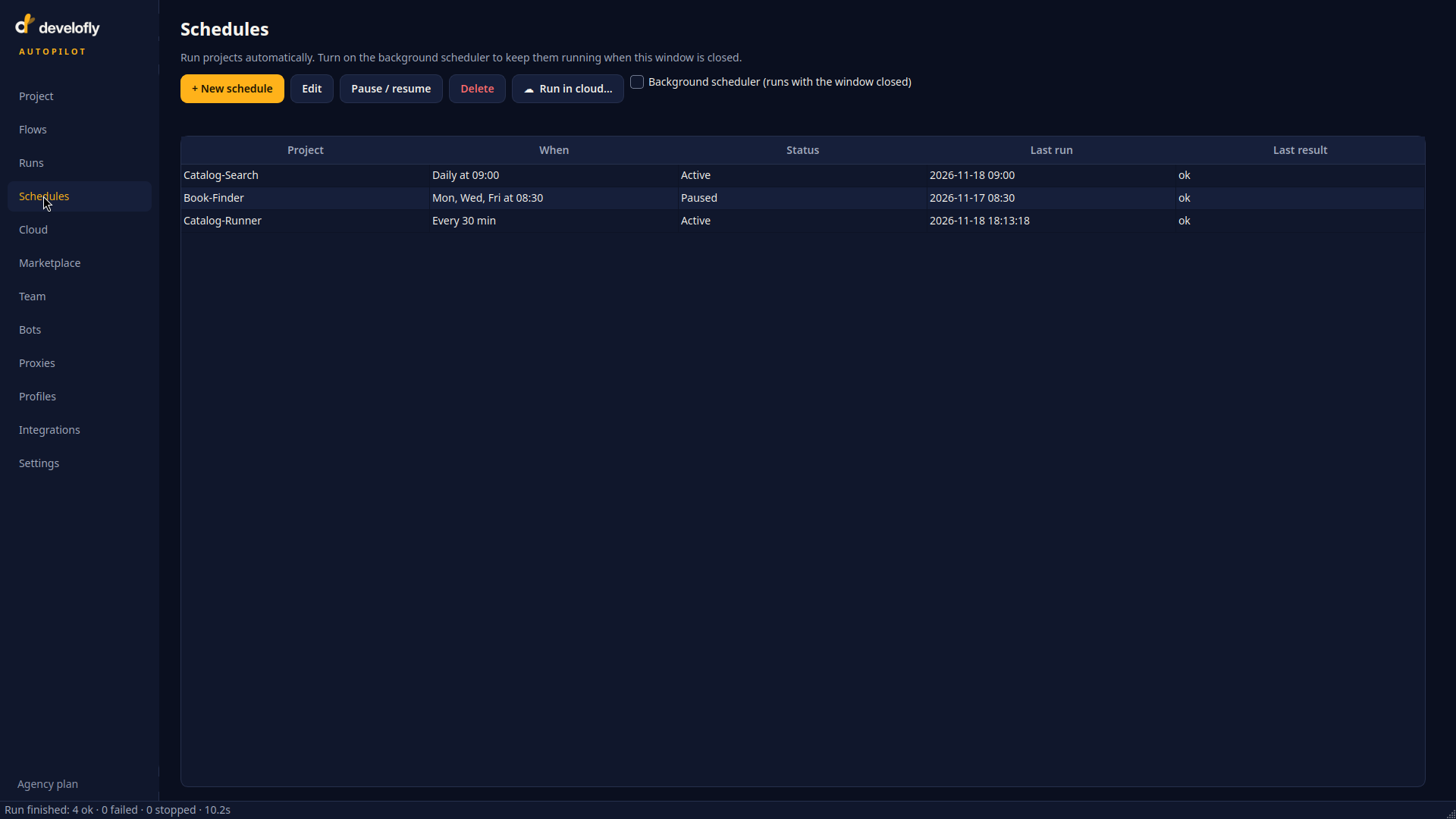
The Schedules page: each schedule's timing, status, last run and result. One is paused; the other two keep firing on their own.
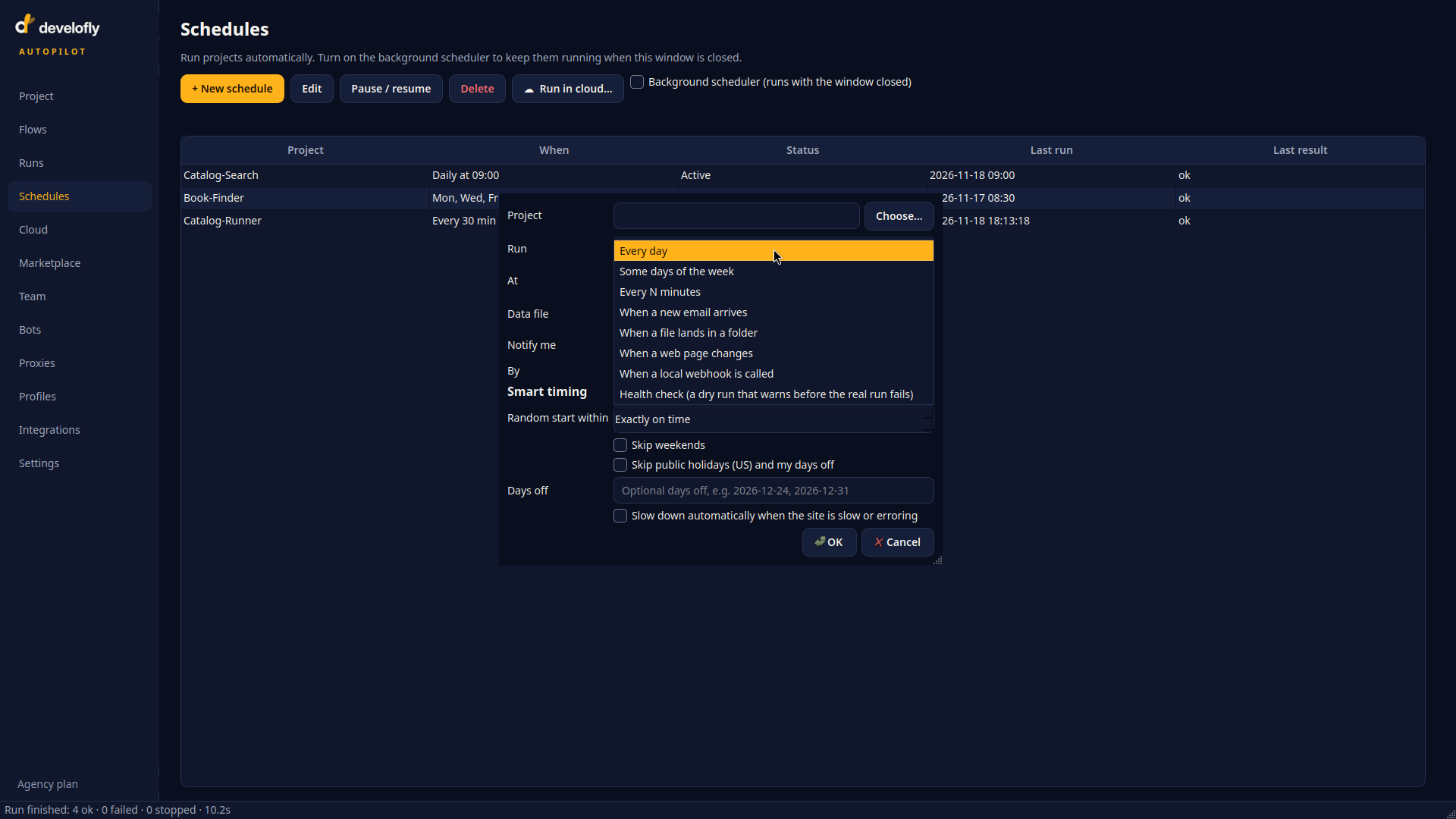
A schedule can run on a clock — or when something happens: an email arrives, a file lands in a folder, a page changes, a webhook is called, or as a health check.
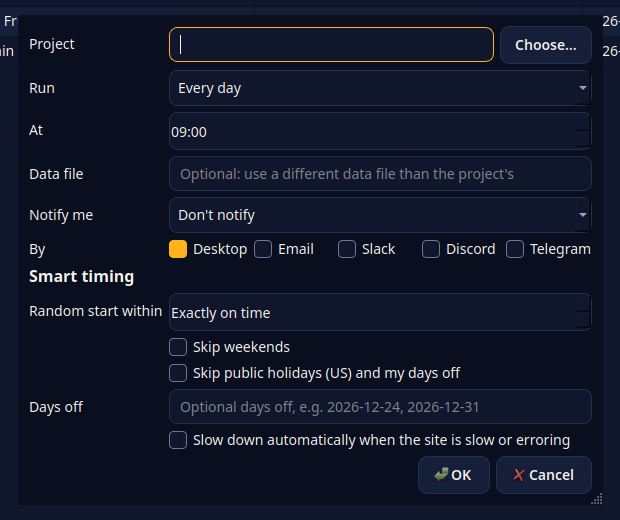
Setting a schedule up: pick the project and its timing, choose who hears about each run, and set any Smart timing options.