 Develofly Autopilot
The Data tab: one run per row
Pick a spreadsheet on the project's Data tab and the bot runs once for every row, with that row's values available to the steps as variables — a Type text step holding {{email}} types each row's email in turn. The tab previews the rows and lists the column names, so you can see exactly what the bot will be fed before it runs. Supported files: CSV and TSV, Excel .xlsx, JSON (a list of objects), and plain .txt (one value per line). With no data file, the project simply runs once.
Forms for the values that change
If a bot needs a few answers rather than a spreadsheet — a search term, a password, a choice from a dropdown — the Form tab turns them into questions the person running the bot answers first. Field types include text, password (hidden, and never saved into results), email, number, dropdown choice, tick box, long text, file and folder. Answers apply to every row; if the data file has a column with the same name, the row's value wins for that row.
Every run saves its results
Each run gets its own folder holding results as an Excel file, a CSV, and a JSON-lines file that is written as each row finishes — so the results survive even if the app closes mid-run — plus a summary and any screenshots the bot took, with a full-page picture of each failed row if you've enabled that. The results columns are your input columns, then each value the bot saved, then a status for the row (ok, failed, stopped, cancelled) and the reason when a row failed.
The Runs page keeps the history
Past runs are listed on the Runs page; open a run's folder to get at its files, or replay it step by step. The dashboard at the top totals the period you pick (30 days by default, or 7, 90, or all time): how many runs, how many rows, the share that succeeded, and the estimated hours saved per project — worked out from the "minutes per row by hand" you set for the project. A Cost & ROI panel turns those hours into money at the hourly rate you enter.
Send results on, automatically
A run's rows can also be sent straight to Google Sheets, Airtable or a webhook when the run finishes — set up once as a destination, then picked in the project's Run settings. That side lives on the Integrations page.
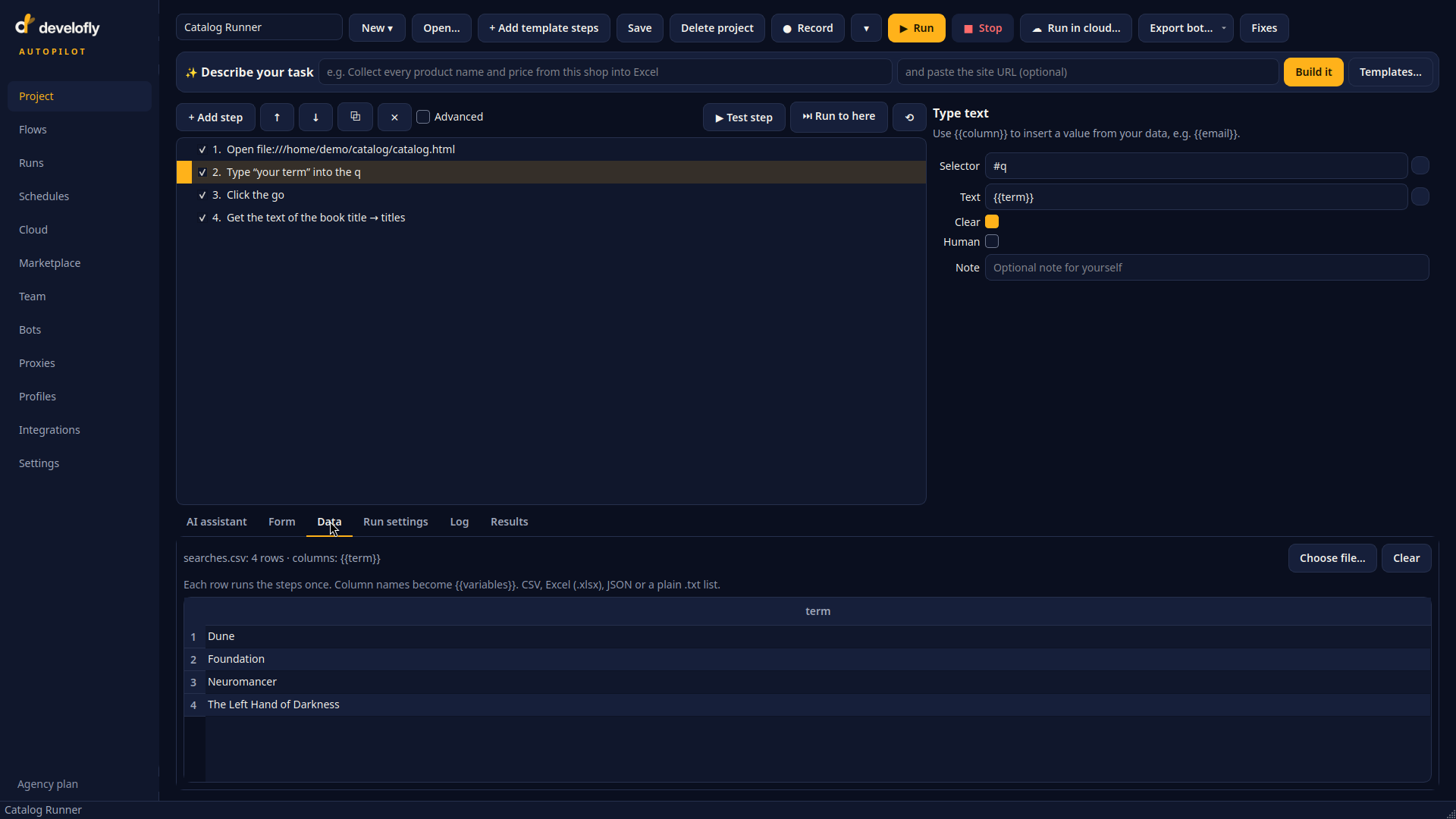
The Data tab: searches.csv loaded — four rows, one column, and the column is ready to use in steps as {{term}}. Each row runs the steps once.
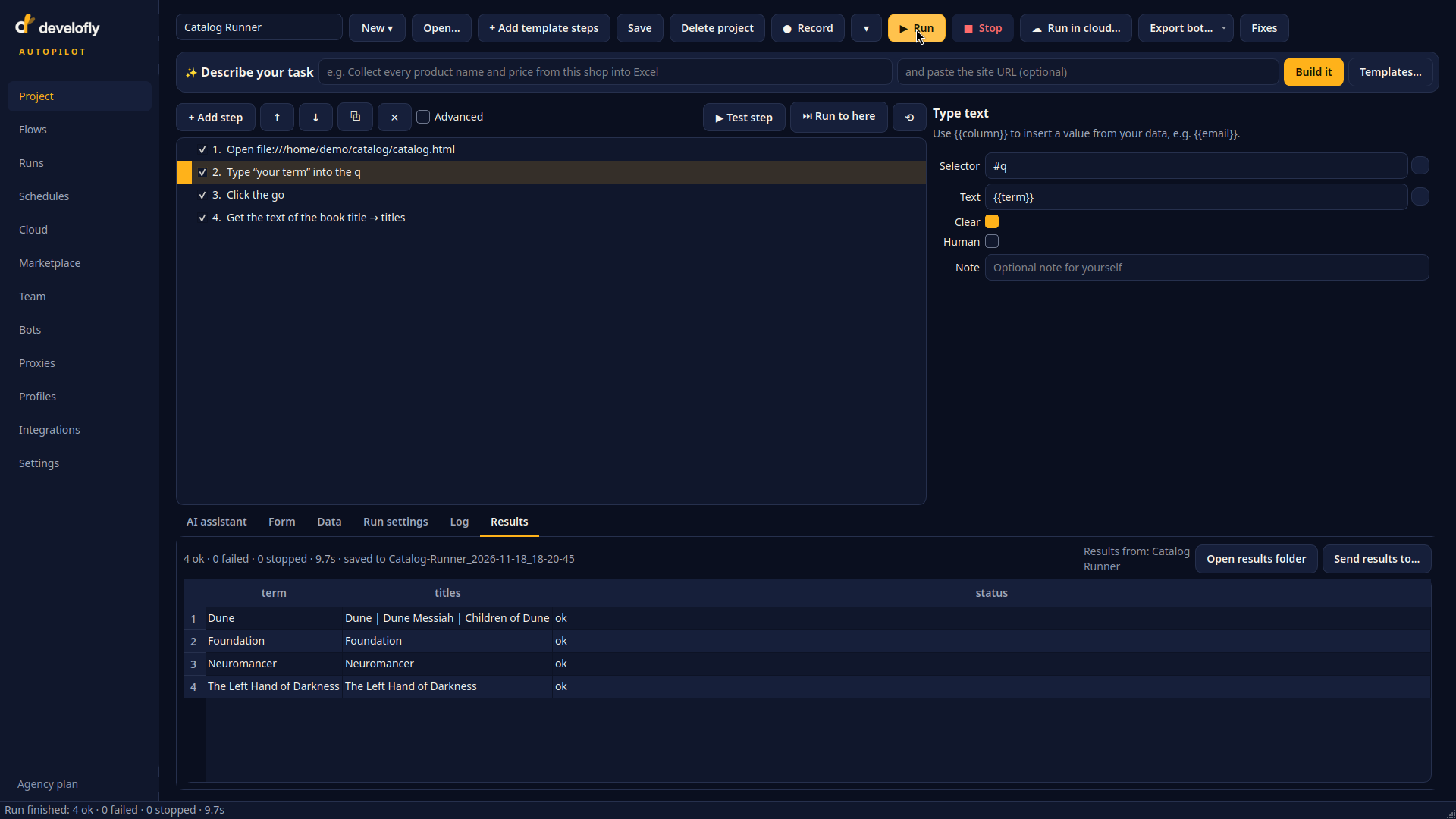
Straight after a run, the Results tab shows every row with the values the bot saved and its status — and buttons to open the run's folder or send the results on.
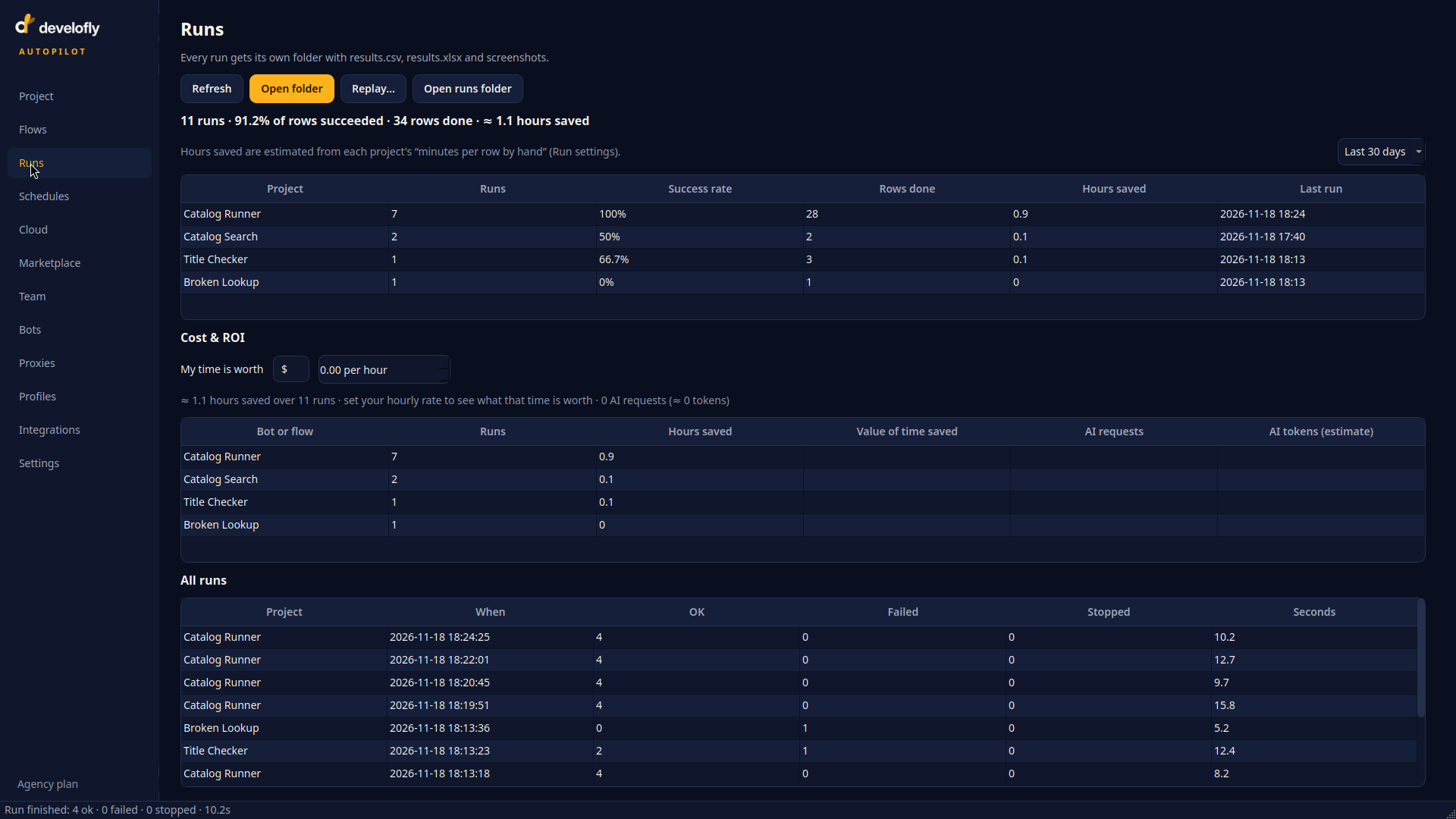
The Runs page keeps the history: totals for runs, rows, success share and hours saved, a Cost & ROI panel, and every past run underneath.