 Develofly Autopilot
Before you start
You need:
- Autopilot, signed in with an active Pro or Agency subscription. Selling on the marketplace is part of those plans. The app runs on Ubuntu and Windows, and selling works the same on both.
- A project to sell — a bot you built or recorded.
- For paid listings, a Stripe account. During setup, Stripe asks for your details (name or business), an ID, and the bank account your payouts go to — all on Stripe's own pages. Develofly never sees your bank details. If you don't have a Stripe account yet, you can create one during setup, or first at stripe.com.
Only listing something free? You can skip most of this: see Free listings.
How the money works
- A buyer pays on Stripe's checkout page — the money goes to your Stripe account, not through Develofly.
- The marketplace keeps 20% of each sale. Stripe pays you the rest, minus Stripe's own fees.
- Stripe pays out to your bank on Stripe's payout schedule — payouts are not instant. See how Stripe payouts work.
- Your Sell tab keeps score for every listing: how many sales, and Earned (after fees) — your sales total minus the marketplace's 20%.
Set up payouts
Do this once. It takes a few minutes, most of it on Stripe's pages.
- Open Marketplace in Autopilot and click the Sell tab. The line at the top explains where you stand; the buttons are the whole toolkit.
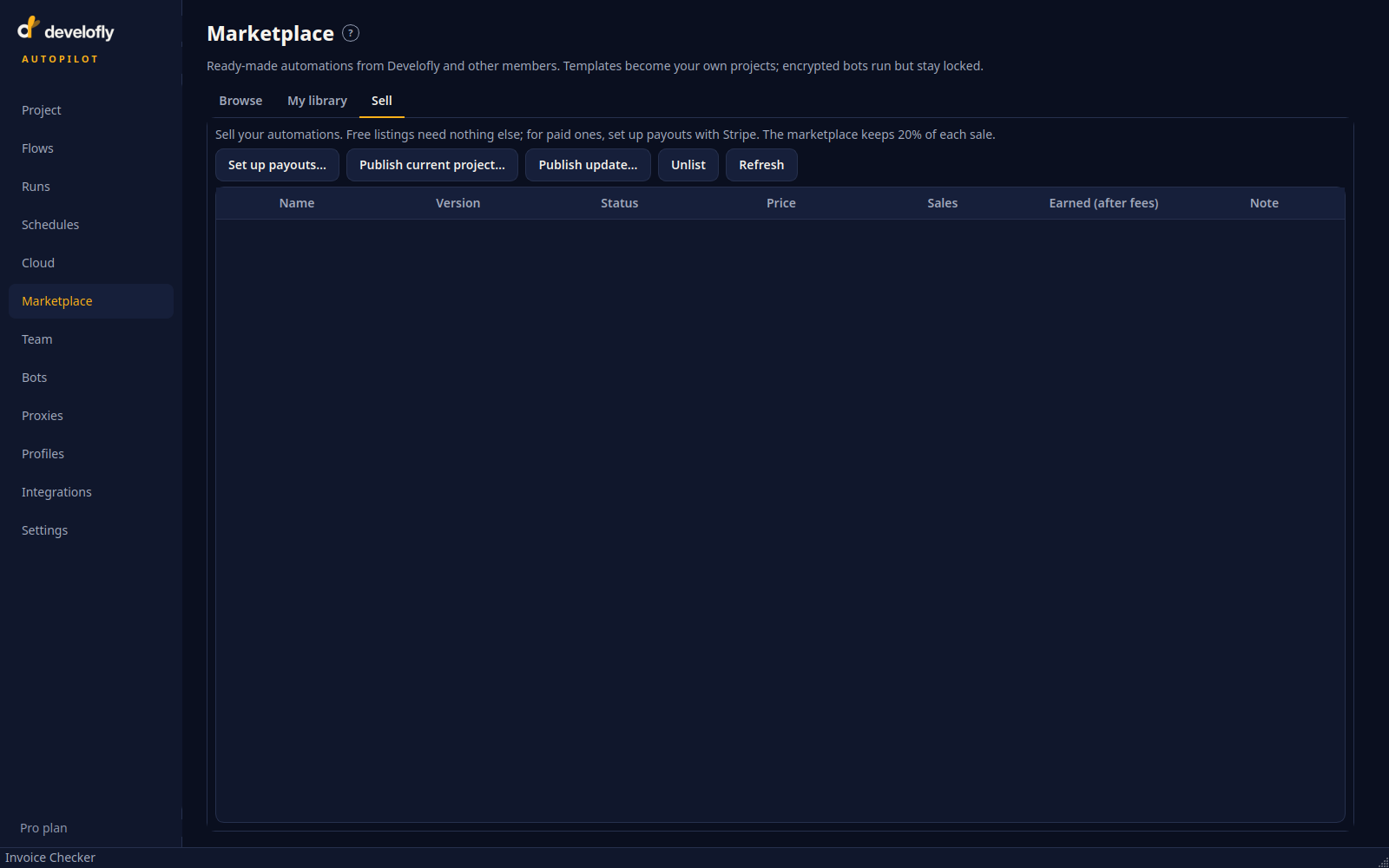
The Sell tab before setup: one line of status, five buttons, and your listings table.
- Click Set up payouts… and type the shop name buyers will see, then click OK.
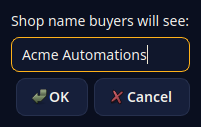
Your shop name is what buyers see next to your listings. You can change it later by running Set up payouts again.
As the browser opens, Autopilot shows "Finish in your browser with Stripe, then click Refresh." — the rest of setup happens on Stripe's pages, not in the app.
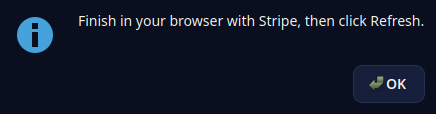
This message stays up while you work in the browser; click OK and carry on there.
- Your browser opens on Stripe's site. Fill in Stripe's pages: who you are, your ID, and the bank account for payouts. This is Stripe's standard check for anyone it pays.
- Stripe sends you back to a Develofly page that says "Payouts set up". Go back to Autopilot and click Refresh on the Sell tab.
- The top of the Sell tab now reads "Shop: your name · payouts ready". You can sell paid listings.
Closed the browser halfway? Nothing is lost: click Set up payouts… again and pick up where you left off. If the browser page says "Link expired", that's the same fix — setup links expire quickly, and the button makes a fresh one. Until setup is finished, the Sell tab says "payouts not finished: click Set up payouts…", like this:
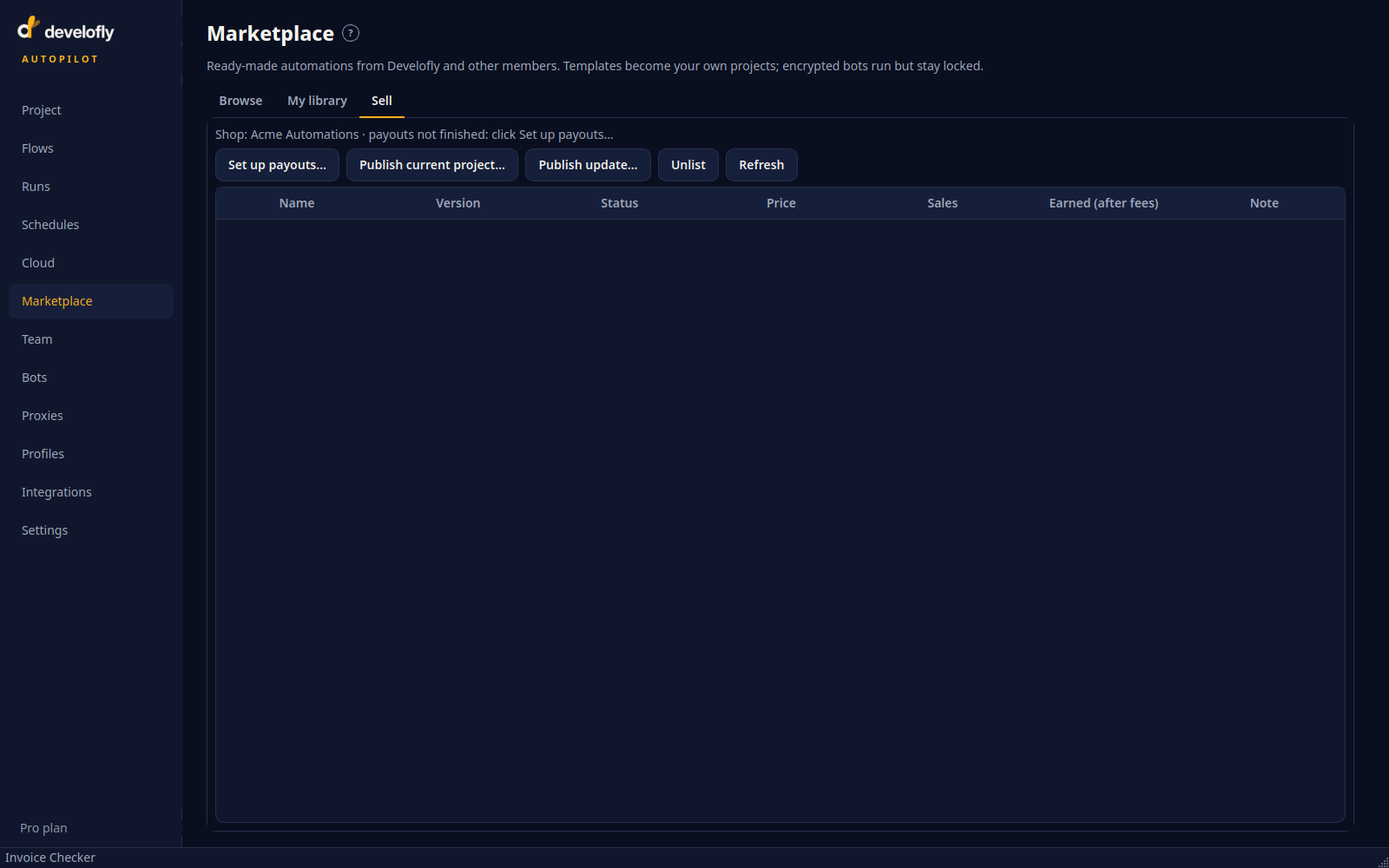
Not finished yet: the shop exists, Stripe's pages still need completing. Refresh re-checks your status with Stripe every time you click it.
Publish a listing
- Open the project on the Project page first — Publish works on the open project.
- On the Sell tab, click Publish current project…
- Fill in the title, a one-line summary, a description and a category. Set the price: $0 shows as Free, and paid prices go from $1 to $500.
- Choose the kind: a template (buyers get the project and can change it) or an encrypted bot (buyers can run it, but never see or copy its steps).
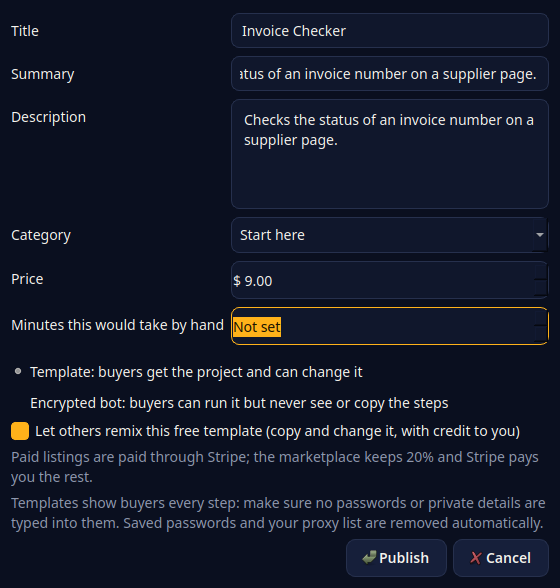
The publish dialog. The line under the form says it plainly: paid listings are paid through Stripe, the marketplace keeps 20%, and Stripe pays you the rest.
- Click Publish. New listings are checked by Develofly before they go live, so the app answers "Sent for review. It goes live once Develofly has checked it." Your Sell tab shows the listing as pending until then.
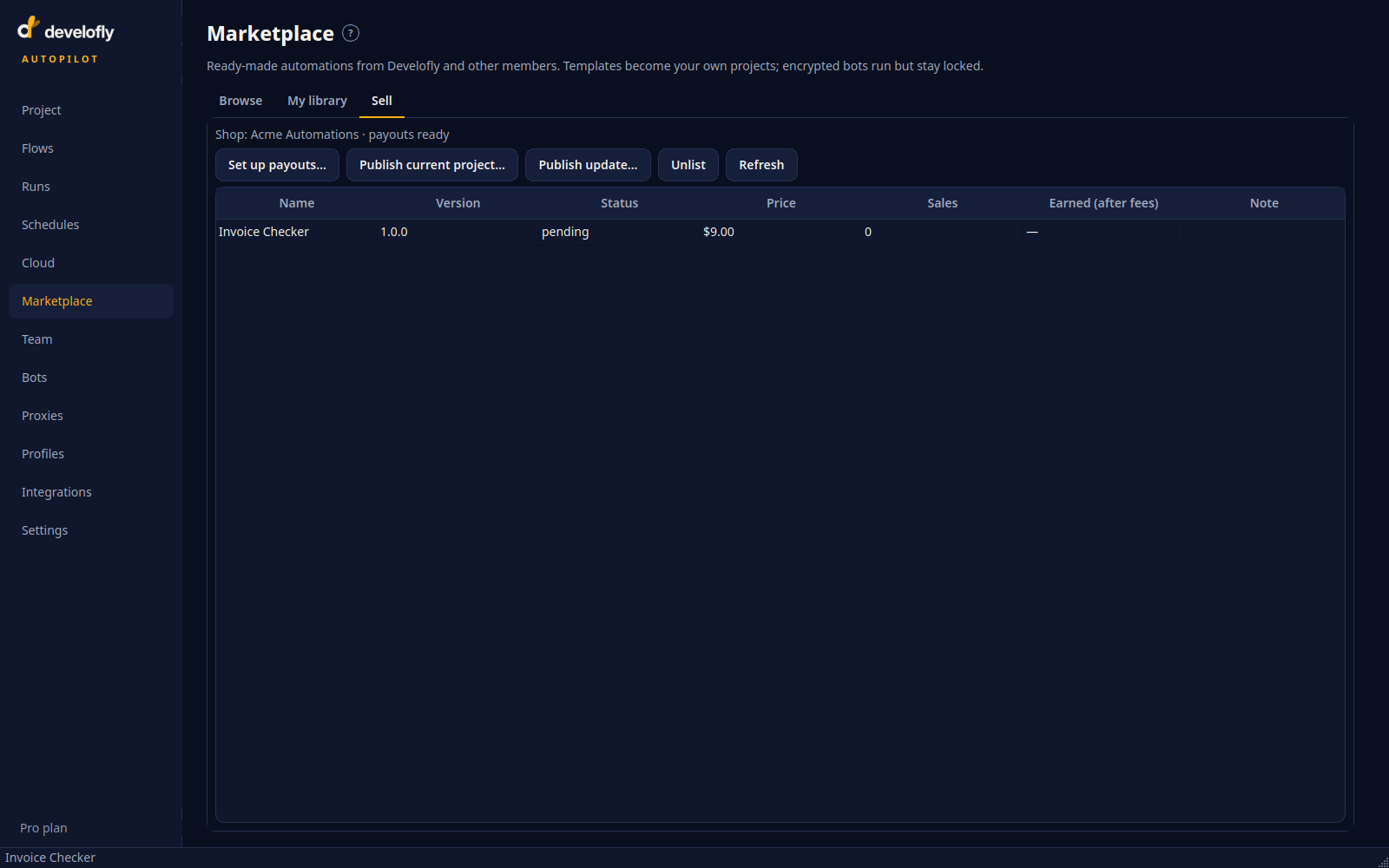
After publishing: payouts ready, and the listing in the table with its status, price, sales and earnings columns.
Trying to publish a paid listing before finishing payouts stops with "Finish setting up payouts with Stripe before selling paid listings." Finish setup, click Refresh, and publish again.
Privacy, before you publish: a template shows buyers every step. Saved passwords and your proxy list are removed automatically, but read through your steps yourself for anything private — a typed password or personal detail in a step is published with it.
Updates and unlisting
Publish an update: select the listing on the Sell tab, open the updated project, and click Publish update… Give the update a new version number (the dialog suggests the next one, like 1.1.0) and a short what changed note. Buyers see the note, get an Update button, and keep everything they've set up. Updates are reviewed like new listings; while one waits, the Sell tab shows it next to the version buyers still have.
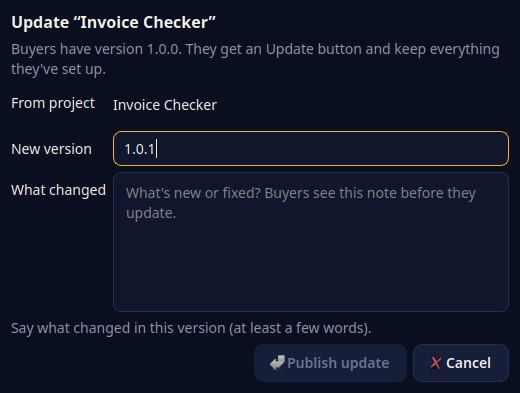
Publishing an update: new version number, and the note buyers read before updating.
Unlist: select the listing and click Unlist. It comes off the marketplace right away — and people who already have it keep it.
Free listings
Free listings never need finished payouts, and nothing is ever paid out on them. The only thing every seller does once is start a shop: click Set up payouts…, type a shop name, and you can close the Stripe pages that open — free listings publish fine while the tab says "payouts not finished". Set the price to $0 (it shows as Free) and publish as above. Finish Stripe's setup later, whenever you want to charge.
Troubleshooting
| What you see | What it means, and what to do |
|---|---|
| "payouts not finished: click Set up payouts…" on the Sell tab | Stripe's setup isn't complete. Click Set up payouts…, finish in the browser, then click Refresh. |
| The browser page says "Link expired" | Setup links are short-lived. Back in Autopilot, click Set up payouts… for a fresh link — nothing you already entered is lost. |
| "Finish setting up payouts with Stripe before selling paid listings." | Same unfinished setup, caught at publish time. Finish setup, Refresh, publish again. Free listings still publish meanwhile. |
| A sale shows on the Sell tab, but the money isn't in your bank yet | That's normal. Stripe pays out on its own schedule, and a brand-new Stripe account can wait longer for its first payout. The Sell tab's Earned (after fees) is what will be paid out, minus Stripe's fees. |
| Stripe says your account is restricted, or payouts pause | Stripe needs more information — usually ID or business details. Click Set up payouts… and Stripe lists what's missing; also check the email Stripe sent you. Until Stripe clears it, paid listings stay blocked; free listings are unaffected. |
| Your bank or details changed | Bank and identity details live with Stripe, not in Autopilot. Click Set up payouts… to reopen your Stripe setup and update them on Stripe's pages. |
FAQ
What does the marketplace take from a sale?
20% of the price. Stripe also takes its own fees — see Stripe's pricing. Your Sell tab's Earned (after fees) column tracks your total after the marketplace's 20%.
When do I get paid?
Stripe pays your bank on Stripe's payout schedule. Develofly doesn't hold your money: a sale goes to your Stripe account at checkout time, and Stripe pays it out from there.
Which plans can sell?
Pro and Agency. Browsing the marketplace and using free templates works for everyone.
What can I sell, and how much can I list?
Projects, as editable templates or encrypted run-only bots. Prices are free, or $1 to $500. You can have up to 50 listings.
Can buyers see how my bot works?
For templates, yes — buyers get the project and can read and change every step. Encrypted bots run without ever showing their steps.
The Sell tab's status line is the source of truth: it re-reads your Stripe status every time you click Refresh.